I wanted some way to back up my Minecraft server’s data so I could recover from things like data corruption caused by buggy mods or losing all my items, so I decided to manage it with git. I could have used a plugin or something, but I figured git would be more versatile. Here are the steps (I’ll assume you’ve already set up the Minecraft server itself).
Installing git
For those who aren’t familiar with it, git is a version control system that keeps track of the history of changes to your files. Have you ever backed up a file by making copy after copy with the date or a version number like 1, 2 tacked onto the filename? With git, you don’t need to do that anymore. And as I’ll explain later, if you also use a hosting service such as GitHub or GitLab, you can sync your data across multiple PCs, and even get it back if your PC itself dies.
You can download git from the following site.
I’ll explain everything below so that even people who have never used git can follow along, so don’t worry.
Initial git setup
It’s a good idea to set your username and email address first. Open Command Prompt or similar and run the following commands1.
git config --global user.name "Your Name"
git config --global user.email "Your Email"
Creating a repository
Run the following command in the directory where your server lives to create a repository2.
git initThis creates a hidden directory called .git. This is where the history of changes to your files and so on is stored.
Excluding files
Create a file called .gitignore and list the files and directories you don’t want to back up.
# Directories you don't want to back up are written with a trailing /

world/data/raids.dat
world/DIM1/data/raids_end.dat
world/DIM-1/data/raids.dat
world/level.dat
world/level.dat_old
world/session.lock
The files above get updated all the time, even when nobody is on the server (= the save data isn’t changing), so backing them up on a regular schedule would never end. They seem to be regenerated automatically if they’re missing, so I exclude them.
If there are any other files or directories you don’t want backed up, add them to .gitignore. Note, however, that files that have already been added to the repository won’t be ignored even if you add them to .gitignore. You need to remove them from the repository first.
In that case, run the following command.
git rm --cached <filename>Backup script
Next, create a script that updates the backup automatically. Save it with a name like backup.bat. This script is for Windows.
@echo off
setlocal enabledelayedexpansion

set REMOTE_REPO_URL=<YOUR_REMOTE_REPO_URL>

if not exist ".git" (
    git init
    git remote add origin %REMOTE_REPO_URL%
)

REM Stash local changes before pulling from the remote repository
git fetch origin
git diff-index --quiet HEAD -- || (
    echo Stashing local changes...
    git stash save
)

echo Pulling changes from remote...
git pull origin main
git stash pop || echo ''
git add .

REM Check whether anything has changed
git diff-index --quiet HEAD || (
    git commit -m "Auto-commit: %date% %time%"
    git push origin main
)

REM Wait one hour, then run again
timeout /t 3600
call %0
Replace <YOUR_REMOTE_REPO_URL> with the URL of your remote repository. Here I’m assuming the remote repository lives on a hosting service such as GitHub or GitLab.
You can also run this without a remote repository. If you go that route, delete the lines set REMOTE_REPO_URL=<YOUR_REMOTE_REPO_URL> and git remote add origin %REMOTE_REPO_URL%.
If you do use a remote repository, sign up for a hosting service, create a repository, and clone it locally (each hosting service should have its own guide on creating and cloning repositories, so I’ll skip that here). You’ll then move the server into that repository and manage it there.
Once the script is ready, just leave it running in the server’s directory.
By default, it backs things up automatically every hour if anything has changed. If you want to change how often it tries to update, change the 3600 in timeout /t 3600 (3600 seconds = 1 hour) and restart it.
Rolling back
You can now restore your data from a past backup (that is, roll back).
To roll back, first stop the server. Run git log to list the commits3 and find the commit hash for the point in time you want to go back to. The long string to the right of “commit” is the commit hash.
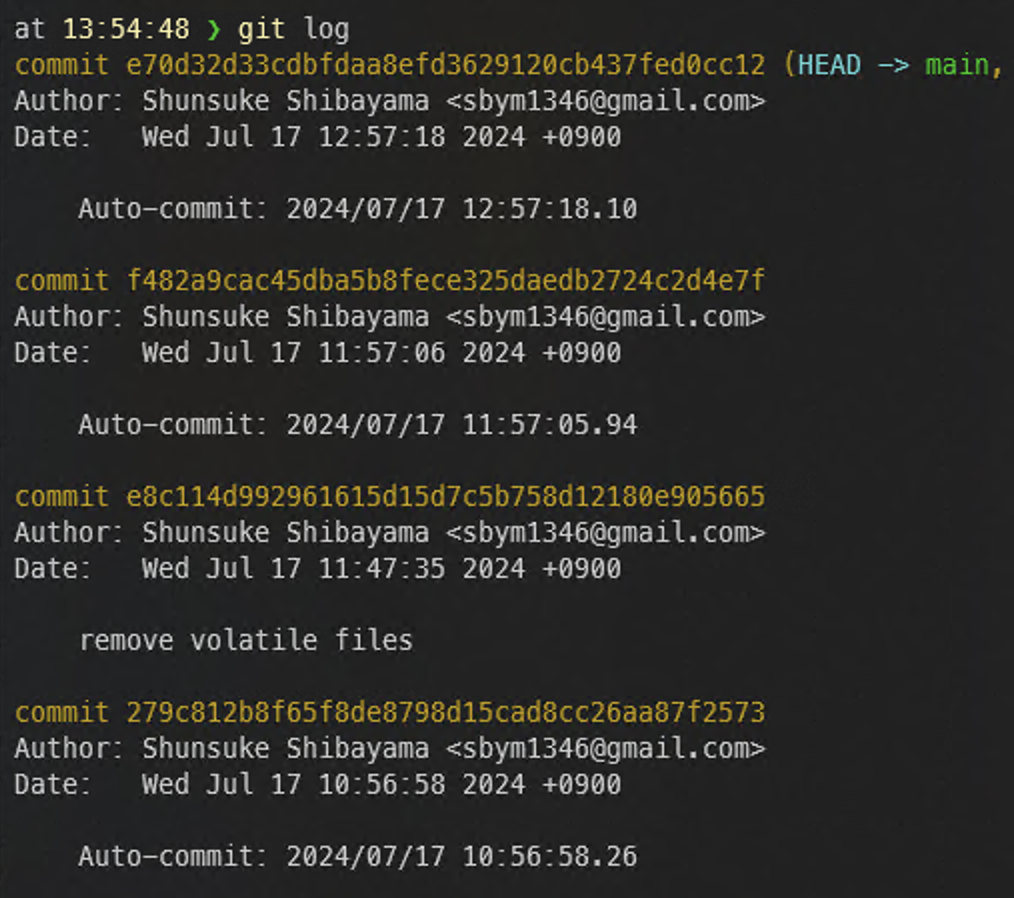
Copy the commit hash you want to restore and press q to exit.
If the commit hash is <COMMIT_HASH>, running git checkout <COMMIT_HASH> takes you back to the state at that commit.
That said, this isn’t strictly a restore; it’s only temporary. To record the restore and make it permanent, you need to do a revert.
git revert HEAD^...<COMMIT_HASH> undoes all the changes back to the specified commit.
However, this will most likely fail, because you’ll run into conflicts.
Specifically, the JSON files in stats should conflict.
In that case, delete every line enclosed between <<<<<<<HEAD and =======. Also delete the line that says >>>>>> parent of ....
That should resolve the conflicts, so run git add . to stage all the changes, then run git revert --continue. An editor should open with a description of the rollback; if you want to leave a comment, write it, then close the editor.
And with that, the rollback is complete. Run git push origin main to push it to the remote repository as well.
All of the above is done on the command line. If you find that hard, you might want to use a GUI tool such as Sourcetree or GitHub Desktop.
Even after a revert, the state from before the restore is still kept (more precisely, a record of the rollback remains), so you can undo the rollback too. Being able to start over when you mess something up is one of git’s strengths.
Bringing in git also opens up plenty of possibilities beyond backups. You can create a branch from some point to spin off a parallel world, and merge worlds back together too, but, well, if that’s something you want to do, go read up on git.
Footnotes
-
Press the Windows key and type
cmdto launch Command Prompt. ↩ -
A repository is a database that manages the history of changes to files and directories. In short, it’s the directory where
.gitlives. A remote repository is a repository somewhere out on the network. By syncing your local repository with a remote one, you can share data across multiple PCs. ↩ -
A commit is the unit in which git records changes. ↩
COMMENTS